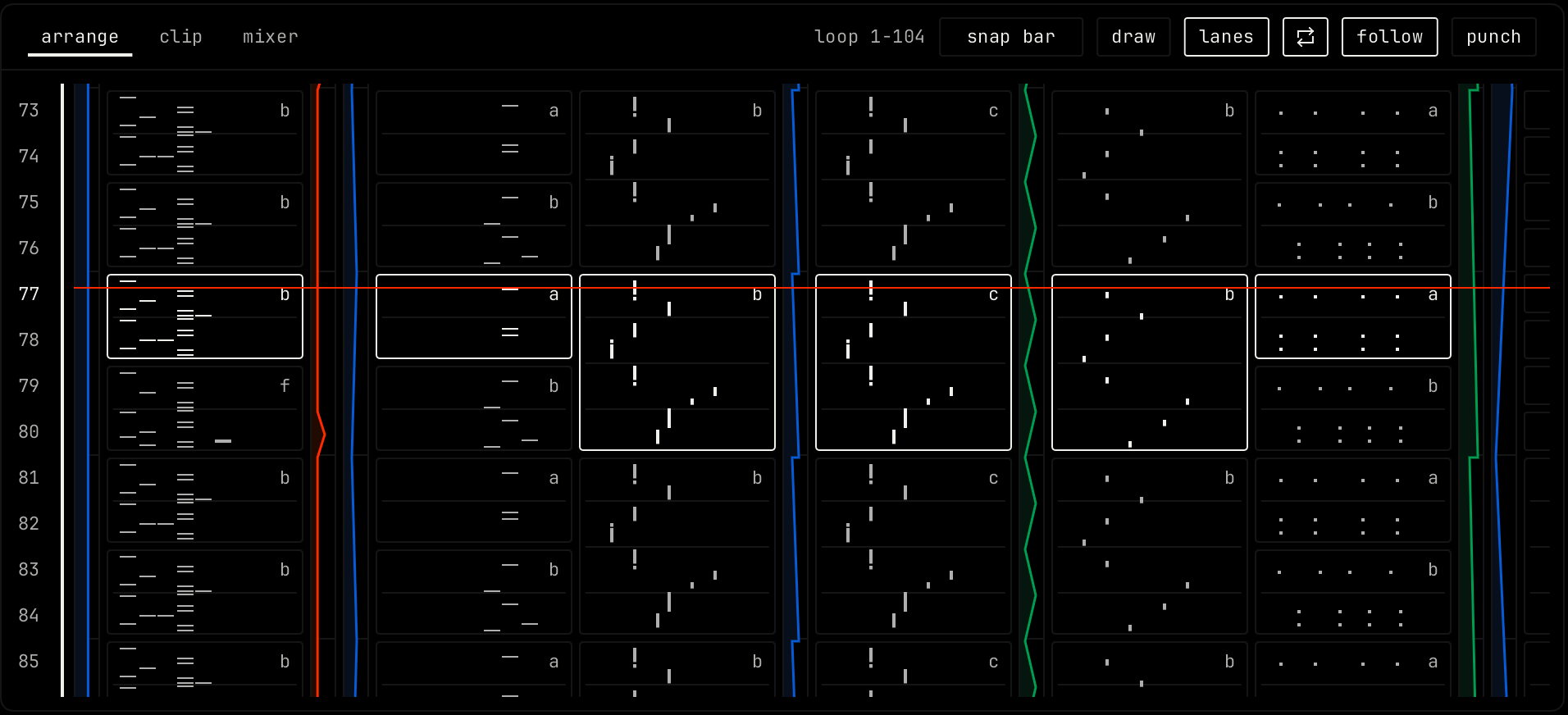
The arrangement is the whole song, from start to end. Open it with the arrange tab in the lower pane, or f5. Time runs down the page, one row per bar. Each column is the same channel as in the clip launcher above it. Try ideas in the launcher, then build the song here.
The arrangement while the demo song plays at bar 77. Playing blocks have a white outline.
Header
The arrangement header.
Control
What it does
loop 1-104
Shows the loop range, from the first to the last bar.
snap
The grid for placing, moving, splitting and resizing blocks: bar, beat, 1/8 or 1/16. Hold alt while you drag to go off the grid.
draw
Draw mode. Drag down from an empty spot to paint copies of the clip, one after another. Key: b.
lanes
Shows or hides the automation lanes next to each channel.
Loop (repeat icon)
On: playback repeats the loop range. Off: it plays to the end of the song. Key: cmd l.
follow
The arrangement scrolls with the playhead.
punch
Recording writes only inside the punch range, the orange strip next to the bar numbers. Outside it, the song plays as usual.
Bar numbers
Action
Result
Click a bar number
Plays from that bar.
Drag in the strip at the right of the numbers
Sets the loop range.
shift drag in that strip
Sets the punch range.
Double-click the numbers
Sets the loop range to the whole song.
Click a marker
Jumps to it. Drag a marker to move it.
Right-click a bar number
Opens the bar menu.
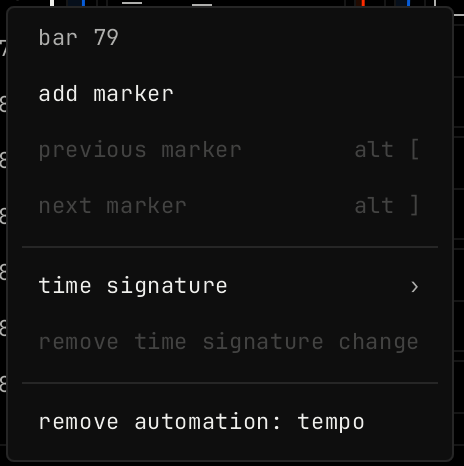
The bar menu.
Item
What it does
add marker
Puts a marker at the bar. On a marker, the menu has rename marker and delete marker.
previous marker / next marker
Jumps between markers. alt [ / alt ].
time signature
Changes the time signature from this bar on.
remove time signature change
Removes a change that starts at this bar.
automate tempo
Adds a tempo lane. When the lane exists, the item reads remove automation: tempo.
Blocks
A block is one use of a clip in the song. The letter at its top right is the row of the clip in the clip launcher: a is the first row, b the second and so on. Changing a clip changes every block that uses it.
Action
Result
Drag a clip from the launcher into the arrangement
Places a block.
Click a block
Selects it and its channel.
Drag a block
Moves it. Hold shift to drag a copy. Hold alt to go off the grid.
With lanes on, each automated value has a column next to its channel. Click in a lane to add a point. Double-click a point to delete it. Right-click a point to set how it moves to the next one: ramp to the next point or step at the next point. See Automation and modulation.