Browser
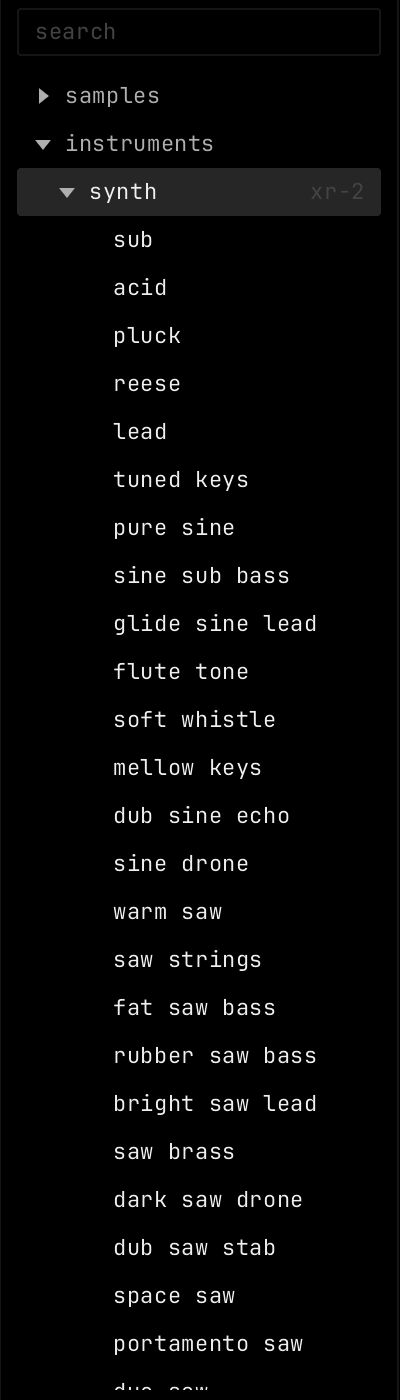
The browser lists samples, instruments, effects, projects and plugins. It opens at the far left of the window. Show or hide it with the browser button in the transport bar, or f8. Drag its right edge to make it wider.
Sections
| Section | What it holds |
|---|---|
| samples | Your sample folders, and your music folder. Right-click samples and pick add folder... to add one. |
| instruments | Every instrument, with its code. Open an instrument to see its patches. |
| effects | Every audio effect and note effect, with their patches. |
| projects | The projects you opened last. Right-click the section and pick refresh to update the list. |
| plugins | The plugins launcher found on your computer. See Plugins. |
Settings can hide sections. See Settings.
Search
Type in the search field to search every section. up and down pick an item. enter loads it. esc clears the search.
Using items
| Action | Result |
|---|---|
| Click a section or folder | Opens or closes it. |
| Click a sample | Plays a preview, when auto preview is on in Settings. |
| Double-click an item | Loads it on the selected channel. A project opens. |
| Drag an item | Drop it on a clip slot, in the arrangement or on the rack. Drop an instrument on an empty spot to make a new channel. |
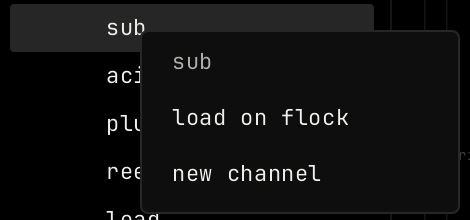
| Right-click an item | Opens a menu for that item. |
| Item | Menu |
|---|---|
| Instrument, effect or patch | load on the selected channel. Instruments also have new channel. |
| Sample | preview, load on the selected channel, new audio channel and show in folder. |
| Folder | rescan and show in folder. A folder you added also has remove from browser. |
| Project | open and show in folder. |
| Plugin | load on the selected channel. |
The box at the bottom of the browser shows the selected item. For an instrument it shows its picture, code and patch.