Mixer
The mixer shows every channel as a strip, with the master strip at the right. Open it with the mixer tab in the lower pane, or f9. It uses the full height of the right side, so the clip launcher is hidden while it is open. f6 goes back.
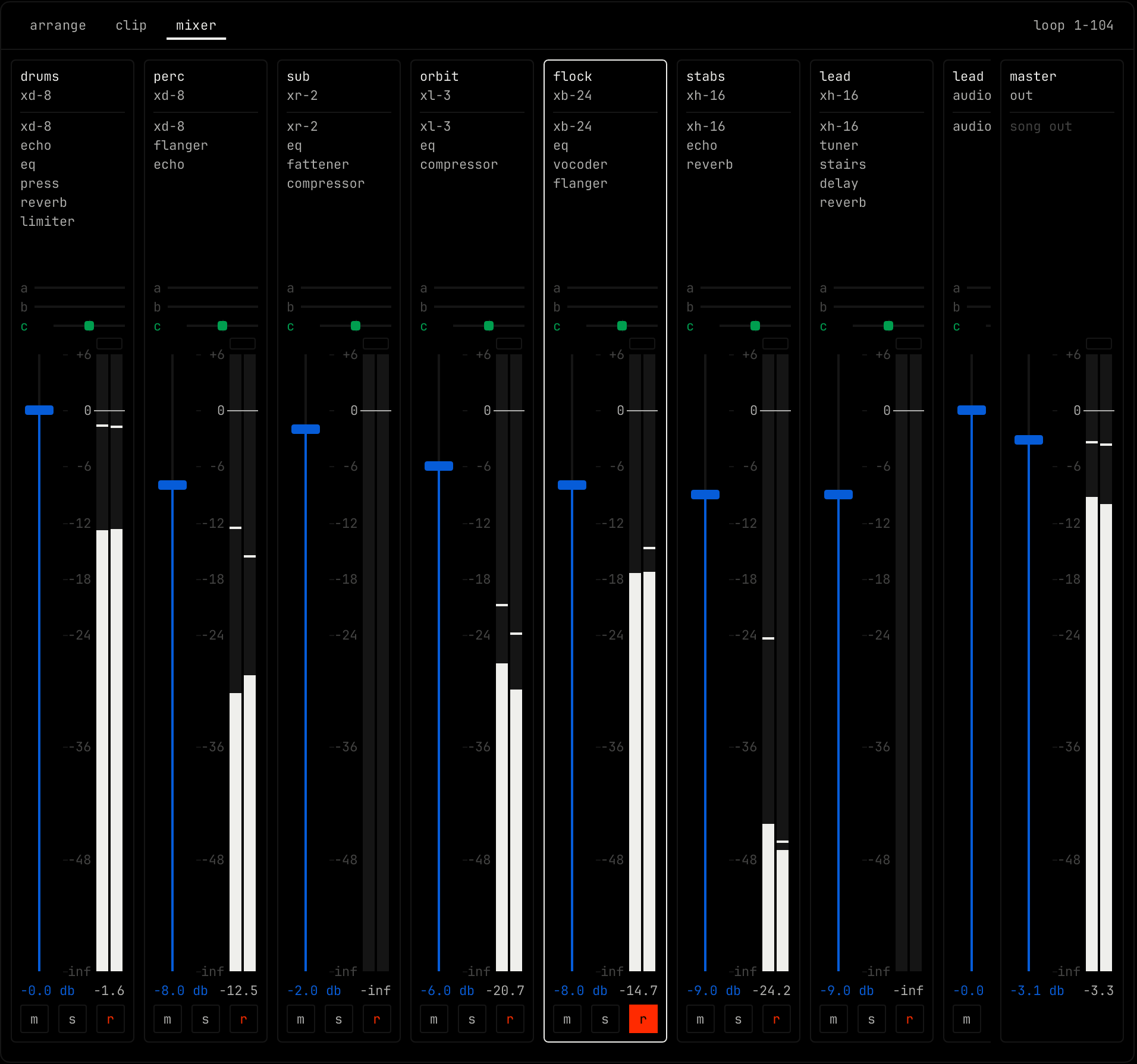
Channel strip

| Part | What it does |
|---|---|
| Name | The channel name and its instrument code. Click to select the channel. Double-click to rename it. Right-click for the channel menu. See Clip launcher. |
| Module list | The modules in the rack, in order. Click one to show it in the rack. Drag an effect up or down to move it in the chain. |
| a / b | Send a and send b: how much of this channel goes to return a and return b. Drag left or right. Double-click for 0. |
| c | Pan. Drag left or right. Double-click for center. |
| Fader | The channel volume, from +6 dB down. Drag up or down. Hold shift for fine steps. Double-click for 0 dB. It is the same volume as the master module in the rack. The value shows under it. |
| Meter | The peak level, left and right. The line is the peak of the last 1.5 seconds. The number under it is that peak in dB. Click to clear the peak hold. |
| Clip light | The small box over the meter. It lights when the signal went over 0 dB. Click to clear it. |
| m / s | Mute and solo. |
| r | On an audio channel: records the input into a new clip on this channel, from the next bar. On a MIDI channel: selects the channel, so the keys and MIDI play it and record into it. |
Master strip
The master strip is the whole song after the master compressor. Its fader sets the master level: drag up or down, hold shift for fine steps, double-click for 0 dB.
Groups and returns
A group strip controls the channels in the group. Click its name to select its channels. Double-click to rename it. Right-click for the group menu. Return channels show as strips too. Add them with add channel in the channel menu.