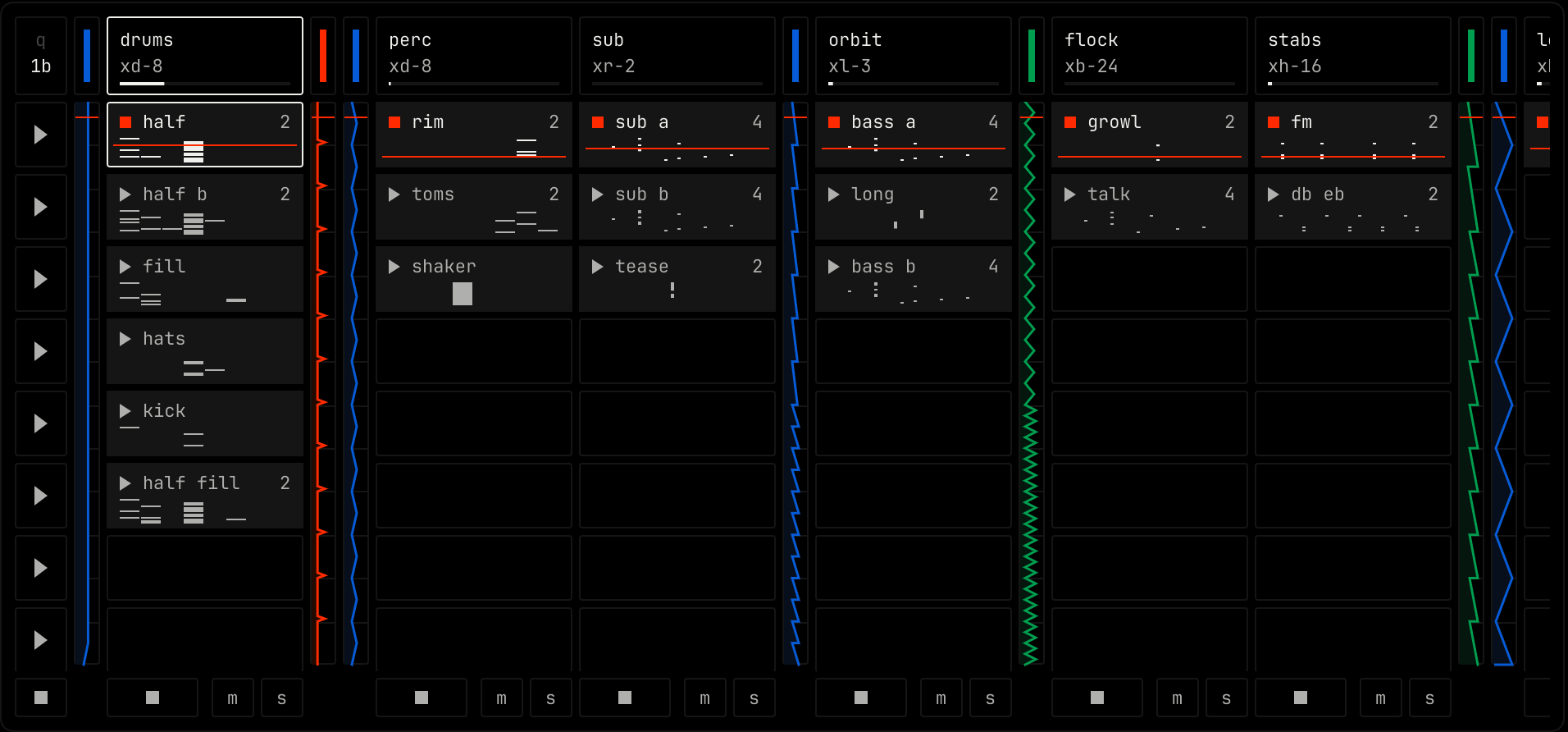
The clip launcher is the top right pane. Use it to play clips live, try ideas and record. Each column is a channel. Each cell holds a clip. Each row is a scene. Clips loop in time with the song.
| Part | What it does |
|---|
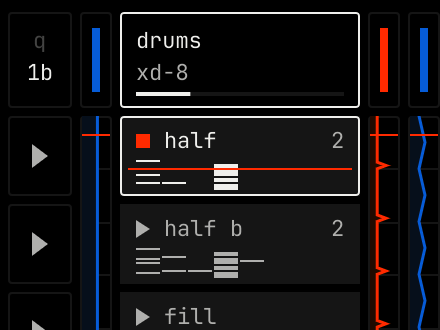
| Launch timing (top left) | Shows when a launched clip starts, for example 1b. Click it to pick off, 1/16, 1/4, 1/2, 1 bar, 2 bars or 4 bars. Off starts the clip at once. |
| Scene buttons (left column) | Click a triangle to launch every clip in that row. |
| Channel header | The channel name, its instrument code and a level line. Click to select the channel and show its rack. Shift-click to add channels to the selection. Drag left or right to move the channel. Right-click the name to rename it. Right-click elsewhere for the channel menu. |
| Clip | The clip name, its length in bars and a small view of its notes or audio. |
| Automation lanes | The thin columns next to a channel. Each one shows an automated value. Click a lane to open it in the arrangement. Drag its right edge to make it wider. |
| Action | Result |
|---|
| Click the triangle on a clip | Launches the clip at the next launch time. The triangle turns into a square while it plays. Click the square to stop it. |
| Click a clip | Selects it. |
| Double-click a clip | Opens it in the clip editor. |
| Double-click an empty cell | On a MIDI channel with an instrument, makes a new clip and opens it. On an audio channel, opens a file dialog to load audio into the cell. |
| Drag a clip | Moves it to another cell. Hold shift when you drop to copy it. Drop it in the arrangement to place it in the song. |
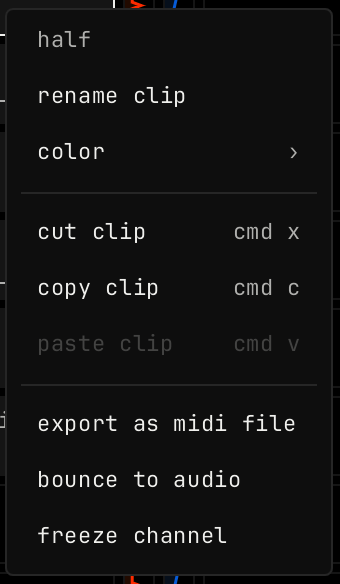
| Right-click a clip | Opens the clip menu. |
| Right-click an empty cell | cut clip, copy clip and paste clip. |
| Item | What it does |
|---|
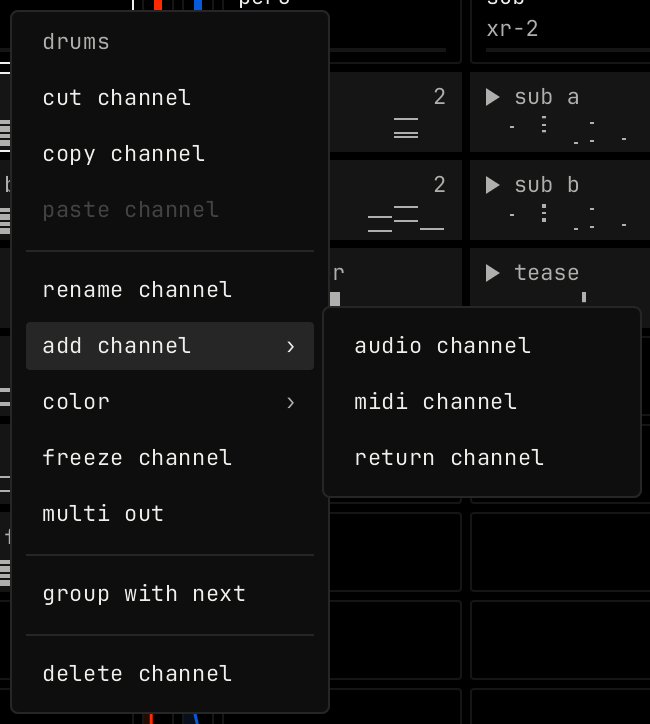
| cut / copy / paste channel | Moves or copies the whole channel, with its rack and clips. |
| rename channel | Changes the channel name. |
| add channel | Adds an audio channel, a midi channel or a return channel after this one. |
| color | Sets the channel color. |
| freeze channel | Renders the channel to audio. See above. |
| multi out | Shown for instruments with several voices, such as drums. Each voice gets its own channel, with its own effects, master module, mute and solo. Pick remove multi out to undo it. |
| group with next | Puts this channel and the next one in a group. |
| delete channel | Removes the channel. |