Audio clips
When the clip holds audio, the clip editor shows its wave and the audio tools. Get an audio clip by recording, by dropping a file on an audio channel, or with bounce to audio in the clip menu.
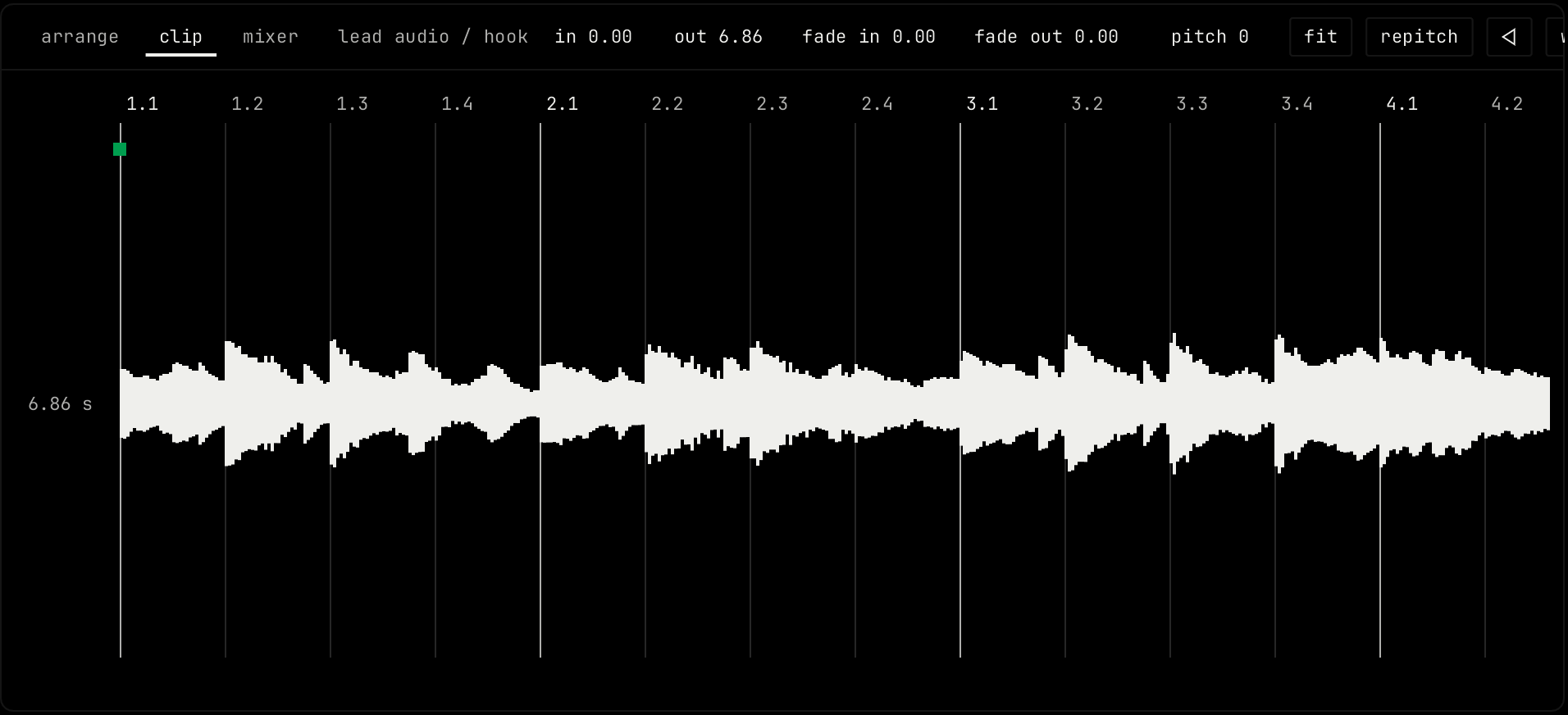
Header

| Control | What it does |
|---|---|
| in / out | The start and end of the audio that plays, in seconds. Drag to change. A warped clip plays the audio between its warp markers instead. |
| fade in / fade out | The fade lengths, in seconds. Drag to change. |
| pitch | Transposes the clip from -24 to +24 semitones. Drag up or down, or scroll. |
| fit | The clip plays at the speed that fills its length. |
| Mode | How the clip changes speed and pitch. See below. |
| Reverse (arrow icon) | Plays the audio backward. |
| warp | The warp menu: auto warp finds the beats, clear warp markers removes them. |
| slices | In beats mode: where the audio is cut. transients cuts at each hit. 1/4, 1/8 and 1/16 cut on the beat grid. |
| loop | In beats mode: a slice with a gap after it repeats its second half to fill the gap. Off: the slice fades out. |
| formants | Keeps the tone of a voice when the pitch moves, so it does not sound small or huge. |
| grain | In texture mode: the length of each grain. Short grains sound rough, long grains sound smooth. |
| flux | In texture mode: how far each grain wanders from its place. More flux sounds looser. |
| takes | On a loop recording: newest take everywhere uses the last pass for the whole clip. flatten comp makes one plain audio clip from the comp. |
The header shows the controls that fit in the pane. Controls for other modes show when you pick that mode.
Modes
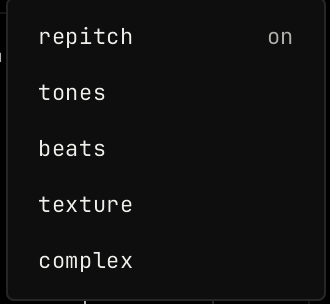
| Mode | Use |
|---|---|
| repitch | Speed and pitch move together, like tape. |
| tones | For one voice or a simple sound. |
| beats | Cuts the audio at the hits and plays each piece at its own speed. For drums. |
| texture | Plays the audio in small grains. For pads and noise. |
| complex | For full mixes. |
Warp markers
Warp markers pin points of the audio to beats, so the clip follows the tempo. Double-click the wave to add a marker. Drag a marker to move its beat. Right-click a marker to delete it.
Takes
Each pass of a loop recording is a take, shown as a lane under the clip. Drag across a take to use that part in the comp. Click a take to use all of it.
The audio module
An audio channel has the audio module at the top of its rack, instead of an instrument. It shows the wave of the selected clip. Drop a file on it to make a clip.
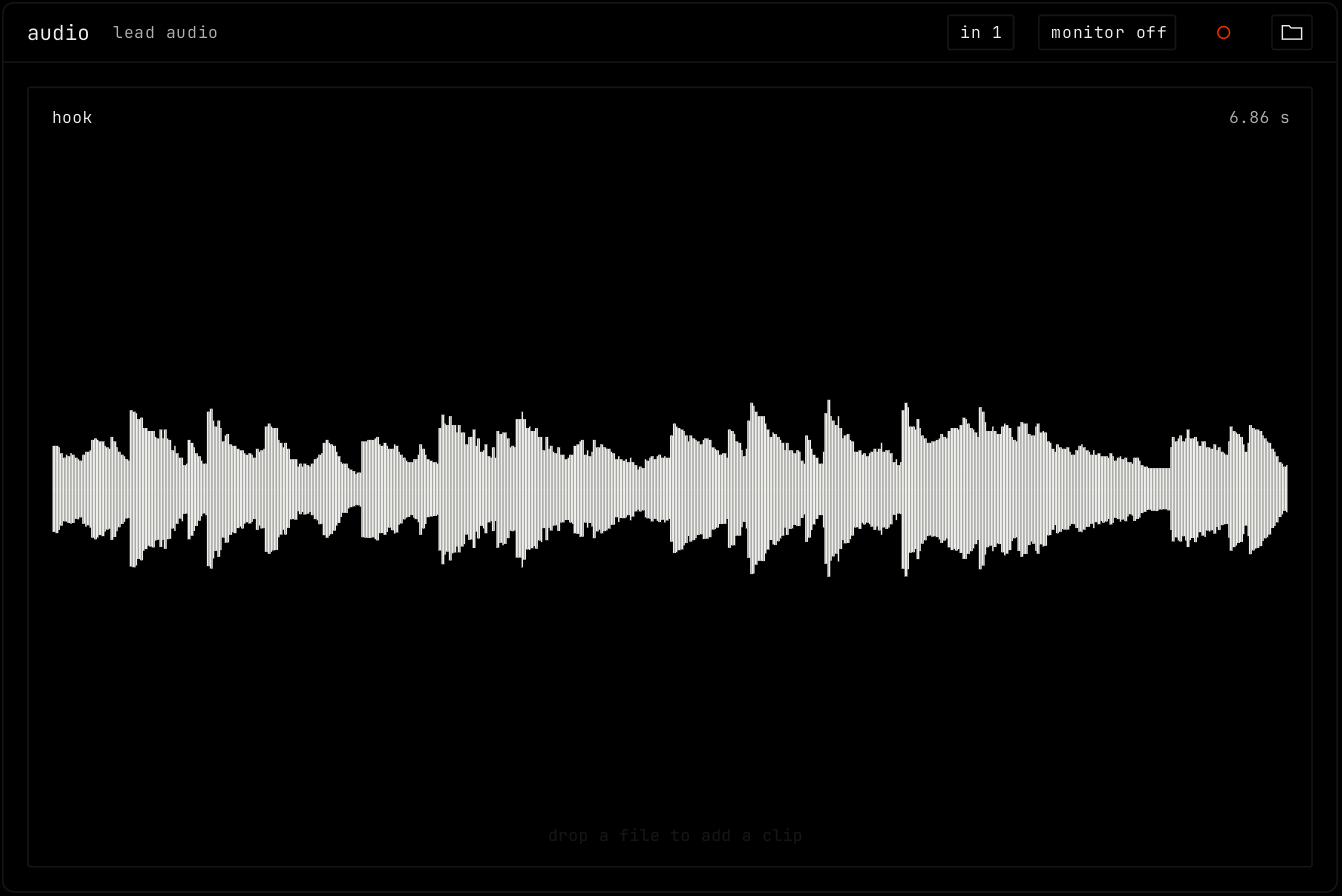
| Control | What it does |
|---|---|
| in | The input this channel records from. Click to pick one. |
| Monitor | Hear the input through this channel and its effects: off, auto, while recording or in, always. |
| Record (circle) | Records the input into a new clip. It starts on the next bar. |
| Load (folder icon) | Opens a file dialog to load audio. |