Automation and modulation
Automation makes a value change over time. Modulation moves values with an lfo, an envelope, a macro, the mod wheel or key pressure.
Automation lanes
A lane holds the points of one value over the whole song. Lanes show as columns next to their channel, in the arrangement and in the clip launcher. Turn on lanes in the arrangement header to see them.
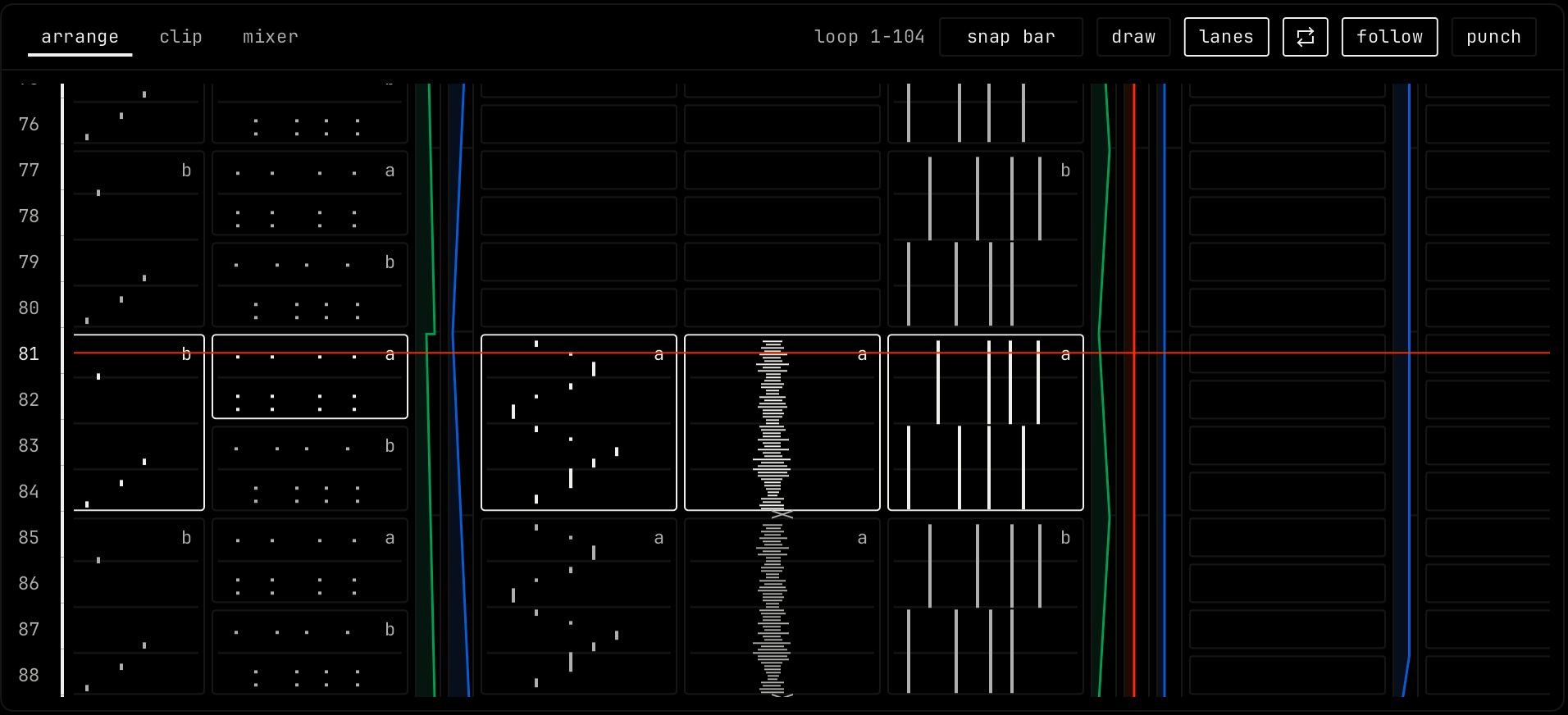
| Action | Result |
|---|---|
| Right-click a control, then automate … | Makes a lane for that value. Right-click the tempo, swing or output meter in the transport bar for song lanes. |
| Click in a lane | Adds a point. Drag to place it. |
| Double-click a point | Deletes it. |
| Right-click a point | ramp to the next point, step at the next point or delete point. |
| Drag the right edge of a lane head | Makes the lane wider. |
| Click a lane in the clip launcher | Opens it in the arrangement at that point of the song. |
| Right-click the control, then remove automation: … | Removes the lane. |
Recording automation
While the record button is on, move a control. Its moves are written into its lane, and launcher makes the lane if there is none. The new points replace the old ones where you move.
If you move an automated control while the song plays and you do not record, the control stops following its lane. Click the head of the lane, at the top of the clip launcher, to make it follow again.
Clip automation
A clip can hold its own automation for values in the rack. It plays every time the clip plays, and it wins over a lane. Draw it in the clip editor: pick a value under rack automation in the lane menu. In the tracker, an effect column edits the same automation. See Piano roll and Tracker.
Modulators
Two effects move other values instead of the sound: xl-6 lfo moves values in a cycle, and xa-4 env moves them with each note or hit. Add them from the effect picker, under modulate.
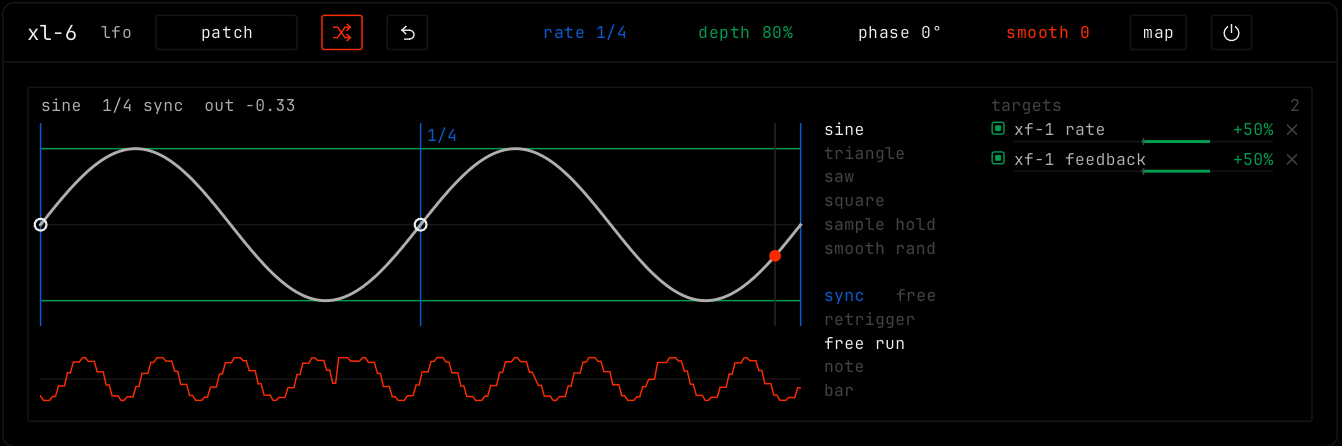
- Click map in the header of the modulator.
- Click a parameter of any module on this channel. You can also drag from map onto the parameter.
- The target shows in the targets list, with its amount.
In the targets list, drag a row left or right to set its amount, from -100% to +100%. Double-click it for +50%. Click × to remove the target.
Macros
Click macros in the master module. Each channel has 8 macro knobs. Each one moves any number of parameters between a low and a high value. Click map under a macro, then click a parameter.

Matrix
Click matrix in the master module. It lists every lfo, env, macro, mod wheel and pressure source on the channel against its targets. Drag an amount, switch a row off with on, or delete it with ×. The live column shows each source as it moves. Click no targets, click to map on the mod wheel or pressure row to map it.
