Clip editor
The clip editor edits one clip. Open it with the clip tab in the lower pane, f7, or a double-click on a clip. A note clip has three views: piano roll, steps and tracker. All three edit the same notes. An audio clip shows the audio tools instead.
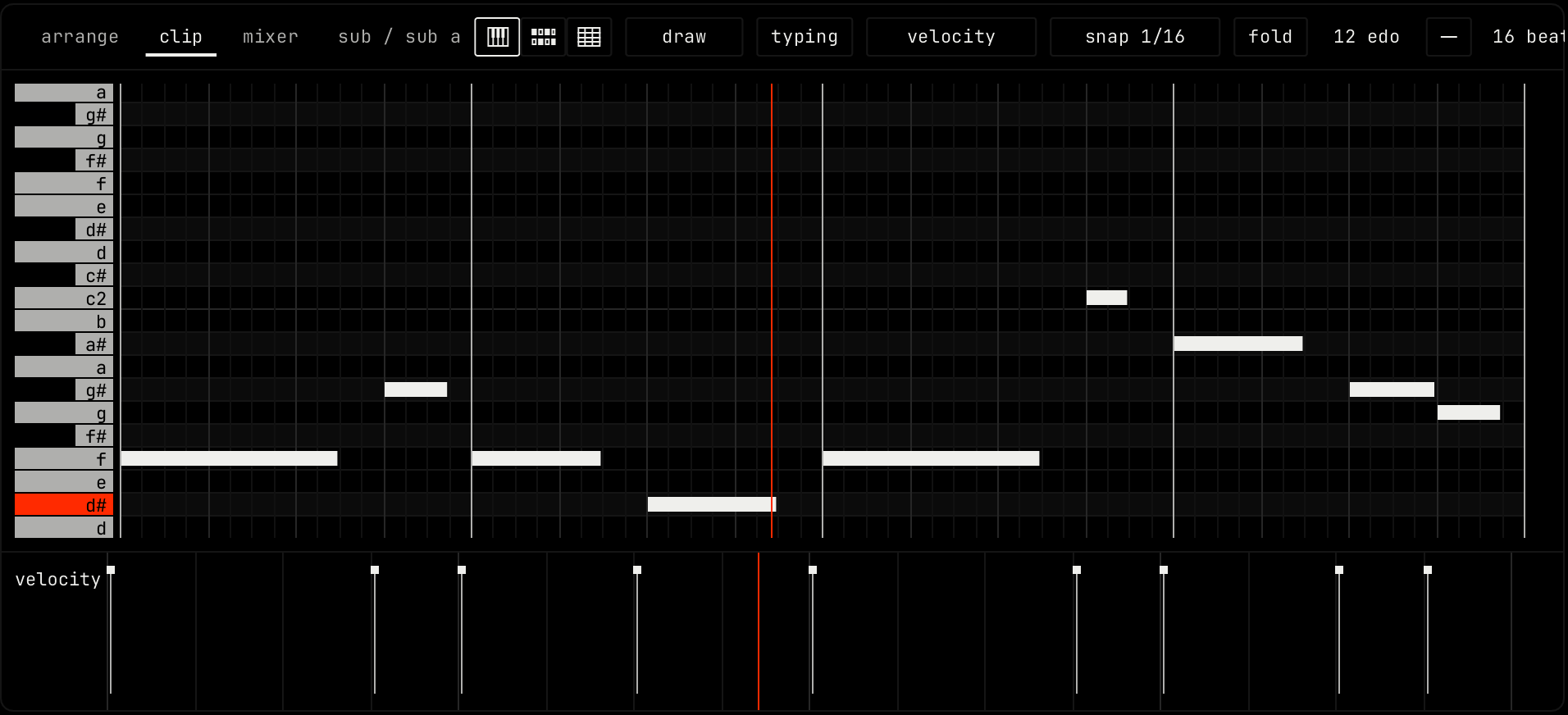
Header

| Control | What it does |
|---|---|
| piano roll, steps, tracker | Switch the view. Settings sets the view a clip opens in. |
| Tool | Shows the piano roll tool. Click it for the tool menu. See Piano roll. |
| typing | On: the letter keys play notes. Off: in the piano roll they pick tools. |
| Lane | What the lane under the notes edits: velocity, chance, repeats, or a value of the rack under rack automation. clear this automation removes the shown automation. |
| snap | The grid for placing, moving and resizing notes: beat, off, 1/64, 1/32, 1/16 t, 1/16, 1/8 t, 1/8, 1/4, 1/2 or 1 bar. t is a triplet. Beat follows the time signature. |
| fold | Shows only the rows that have notes. |
Tuning (12 edo) | The equal divisions of the octave for this clip. Notes move to the nearest step. Click for the next tuning, shift-click for the previous one, or scroll. A drum channel shows pads. |
| - length + | The clip length in beats. Click - or +, or drag the number. The length in bars shows next to it. |
| clr | Removes every note in the clip. |
| follow | Opens the follow actions of the clip. See below. |
| groove | Opens the groove of the clip. See below. |
Follow actions
A follow action says what the channel plays after this clip. It works in the clip launcher.
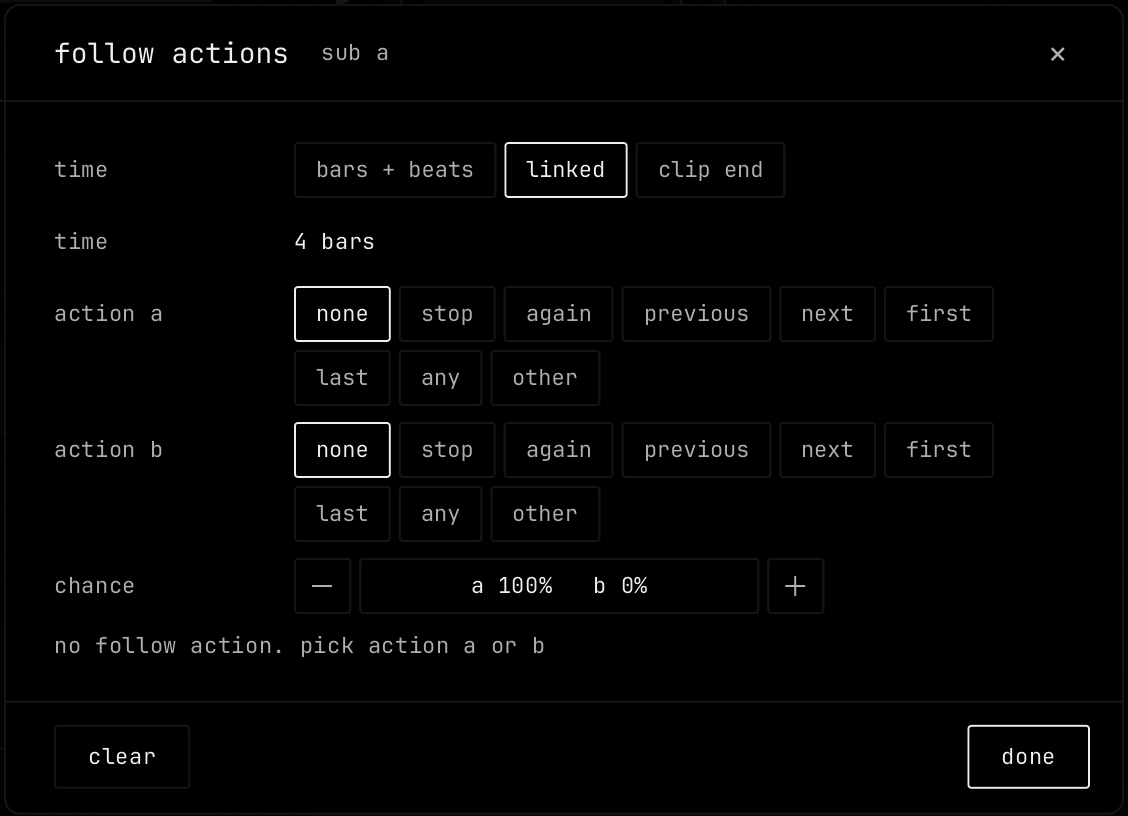
| Setting | What it does |
|---|---|
| time | When the action runs. bars + beats: a set time after the launch, set with bars and beats. linked: after the clip length, and it changes with the length. clip end: where the notes or the audio end. |
| action a, action b | none, stop, again, previous, next, first, last, any or other. Previous, next, first, last, any and other pick from the clips next to this one, with no empty cell between. Any can pick the same clip again. Other always picks a different clip. |
| chance | How often action a runs. Action b runs the rest of the time. |
clear removes the follow actions. done closes the window.
Groove
A groove gives a clip its own timing and velocity feel. It replaces the song swing for this clip. It moves the notes as they play and does not change them.
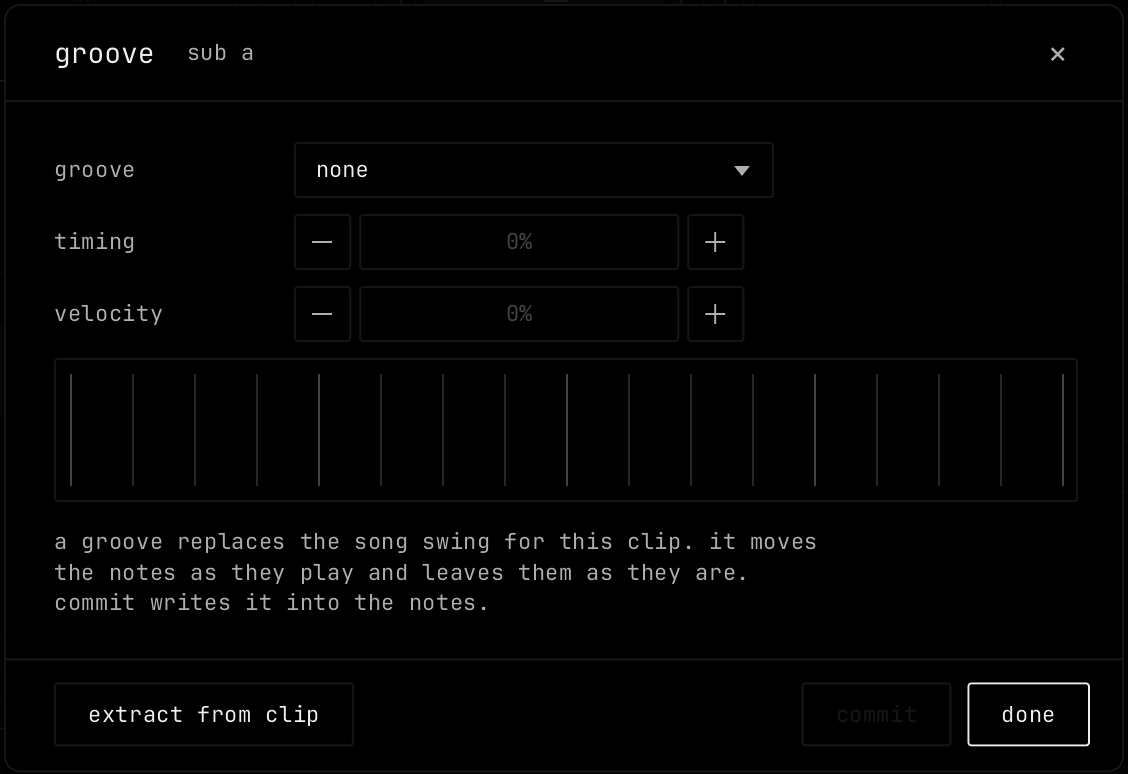
| Control | What it does |
|---|---|
| groove | Picks the groove: none, a built-in groove (laid back, push, shuffle, drunk, human 16), or a groove made from a clip, under from clips. |
| timing | How far notes move to the groove timing, 0% to 130%. |
| velocity | How much the groove velocity shapes the notes, 0% to 130%. |
| extract from clip | Makes a groove from the timing and velocity of this clip's notes and adds it to the groove pool. |
| delete groove | Shown for a groove made from a clip. Removes it from the pool. Clips that use it go back to none. |
| commit | Writes the groove into the notes and sets the clip back to none. |
| done | Closes the window. |
Keys
These keys work in the piano roll and the steps view.
| Key | Action |
|---|---|
| cmd q | Quick quantize |
| cmd l | Quick legato. Outside the clip editor this key turns the loop on or off. |
| cmd u | Quick chop |
| cmd g | Glue notes |
| cmd d | Deselect |
| cmd insert / cmd del | Insert or delete time in the time selection |
| up down left right | Move the selected notes |
| cmd a | Select all notes |
| cmd c / cmd x / cmd v | Copy, cut and paste notes |