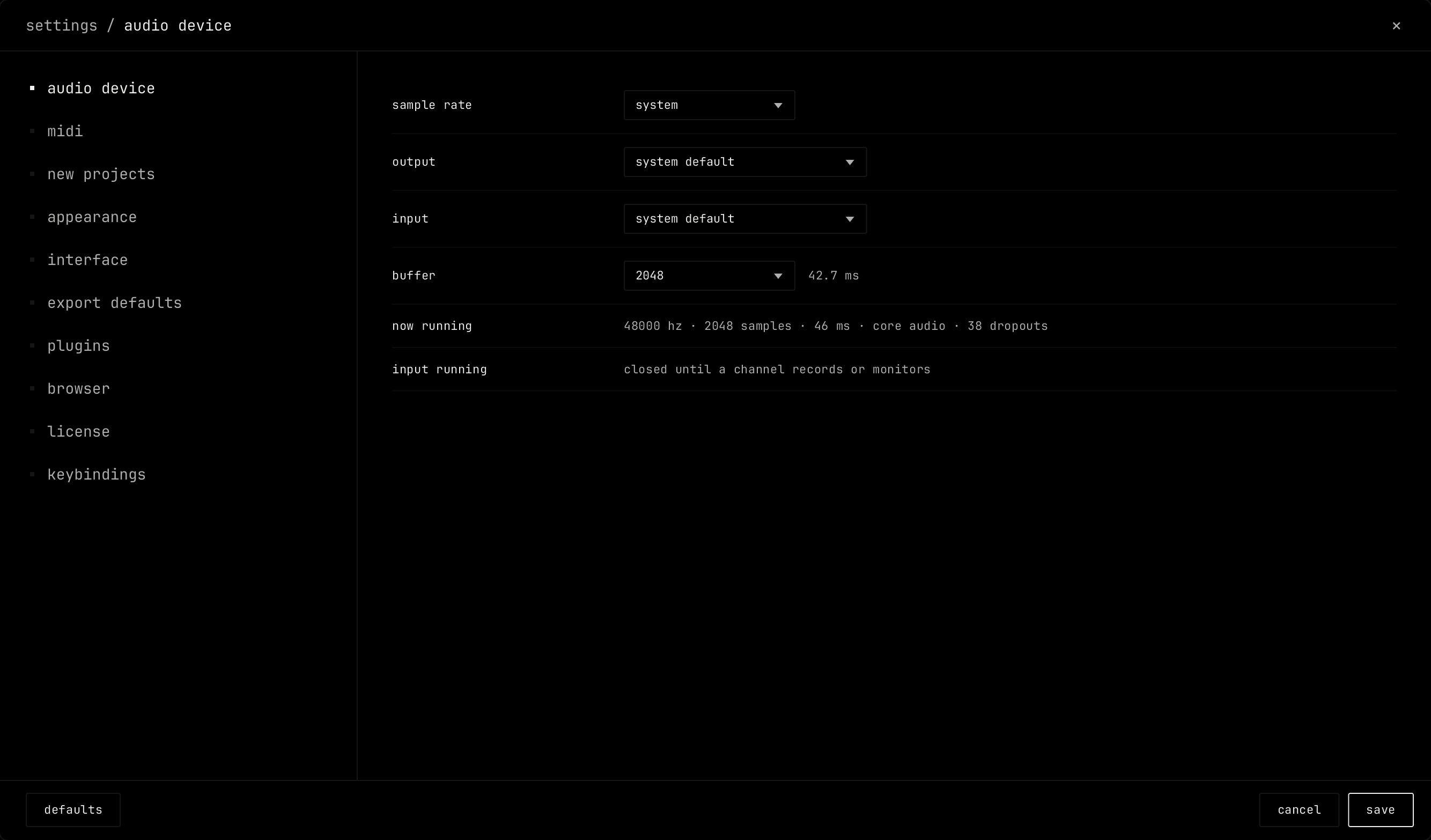
Open Settings with cmd ,, f10, or settings... in the edit menu. Pick a section on the left. Click save to keep your changes, or cancel to drop them. defaults sets the section back to its default values.
audio device
audio device.
Setting
What it does
sample rate
The sample rate of the audio. system uses the rate of the device.
output
The audio output. Default: system default.
input
The audio input for recording. Default: system default.
driver
On Windows: shared, or another driver such as ASIO.
buffer
The buffer size in samples, with its time in milliseconds. A smaller buffer reacts faster and needs more processing power. Default: 512.
now running / input running
The output and input as they run now.
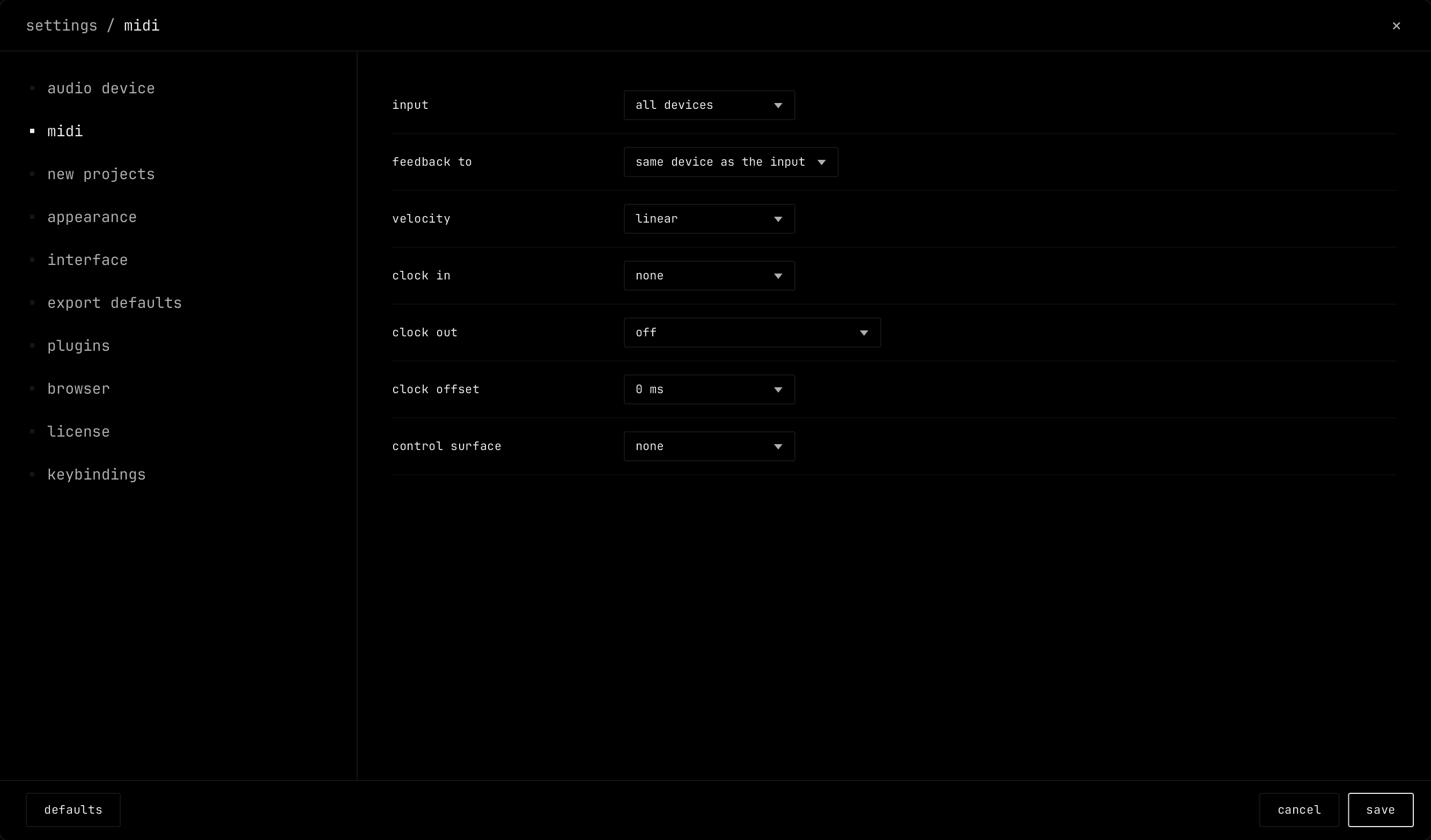
midi
midi.
Setting
What it does
input
The MIDI input: all devices, or one device.
feedback to
Where launcher sends lights and values back to your controller: same device as the input, off, or one output.
velocity
The velocity curve: soft, linear, hard or fixed.
clock in
A MIDI input whose clock sets the tempo. Default: none.
clock out
The MIDI outputs that get clock, song position, start, continue and stop.
clock offset
Sends the clock earlier or later, in milliseconds.
control surface
A controller with its own protocol: launchpad, mackie control or hui. See MIDI and key mapping.
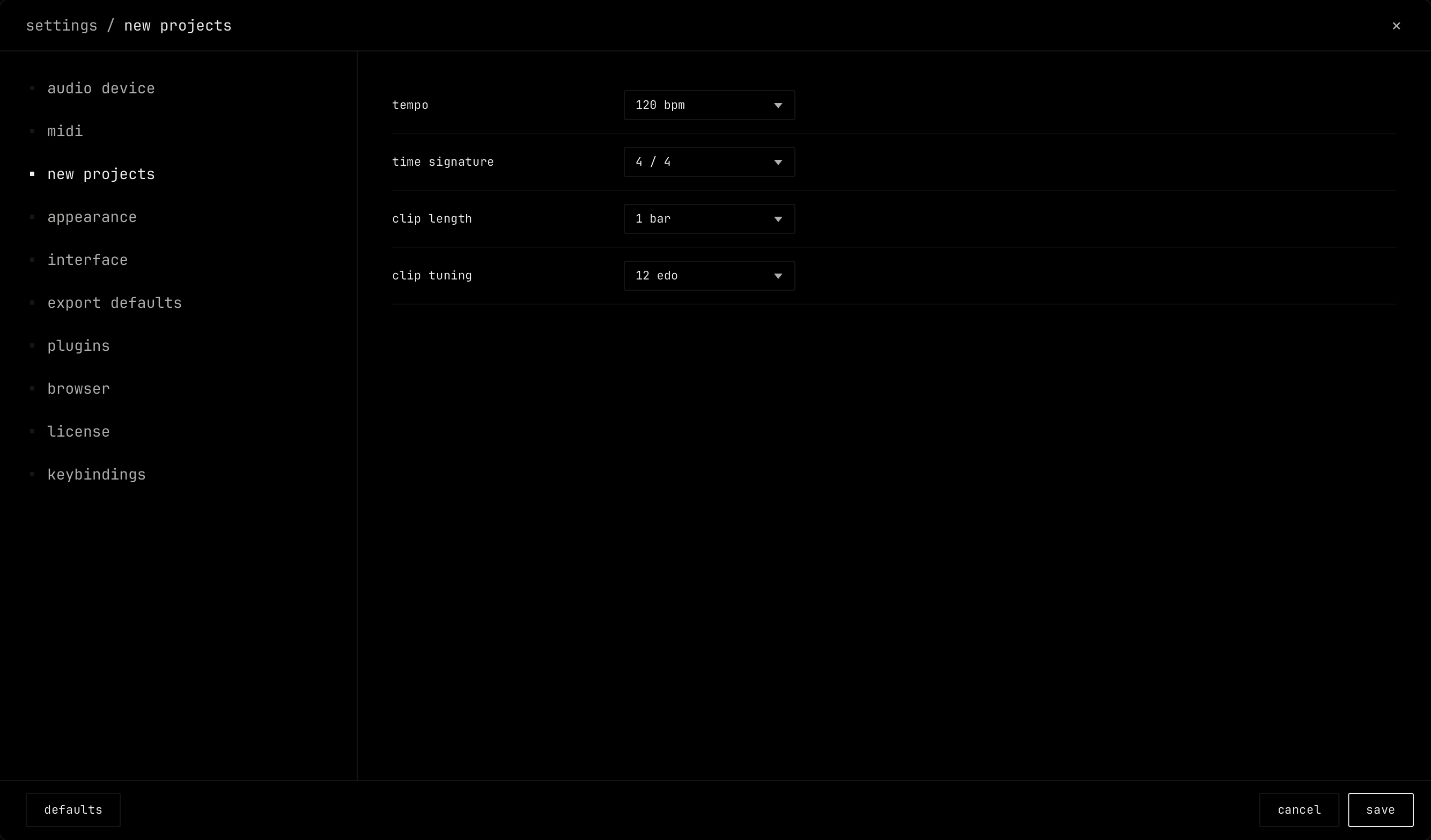
new projects
new projects.
Setting
What it does
tempo
The tempo of a new project. Default: 120 bpm.
time signature
The time signature of a new project. Default: 4/4.
clip length
The length of a new clip. Default: 1 bar.
clip tuning
The tuning of a new clip. Default: 12 edo.
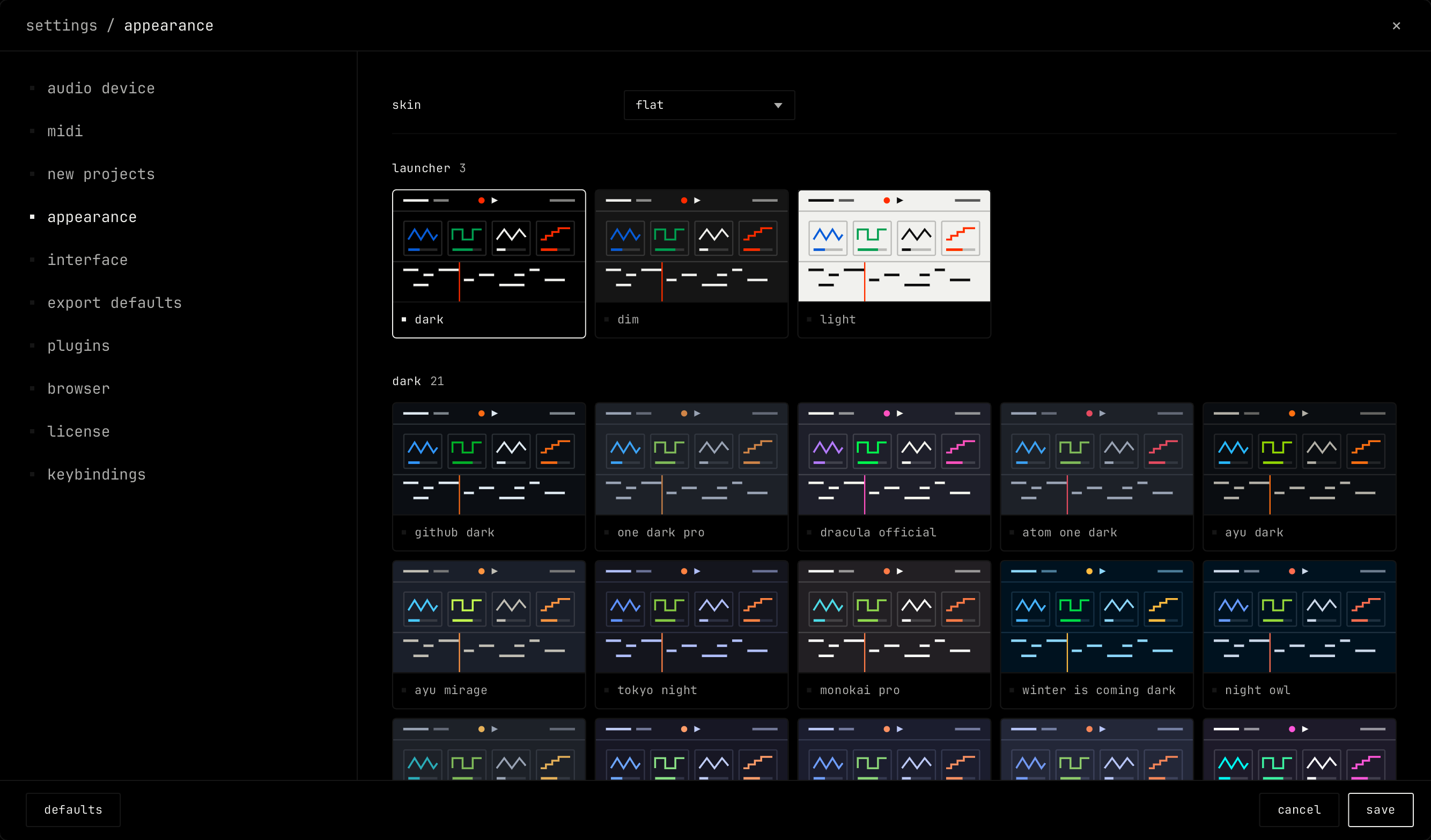
appearance
appearance.
Setting
What it does
skin
The style of the controls: flat, soft raised, hardware rack or classic bevel. Default: flat.
Themes
The colors. Click a card to pick a theme. The themes come in groups: launcher, dark and light. Default: dark.
contrast
A slider that makes the theme colors stronger or softer, from 0.6 to 1.6. Default: 1.0.
zoom
The size of the whole window, as a percentage. Default: 100%.
frames per second
How often the screen redraws. screen rate follows the display. A lower rate saves processing power. The current rate shows next to it.
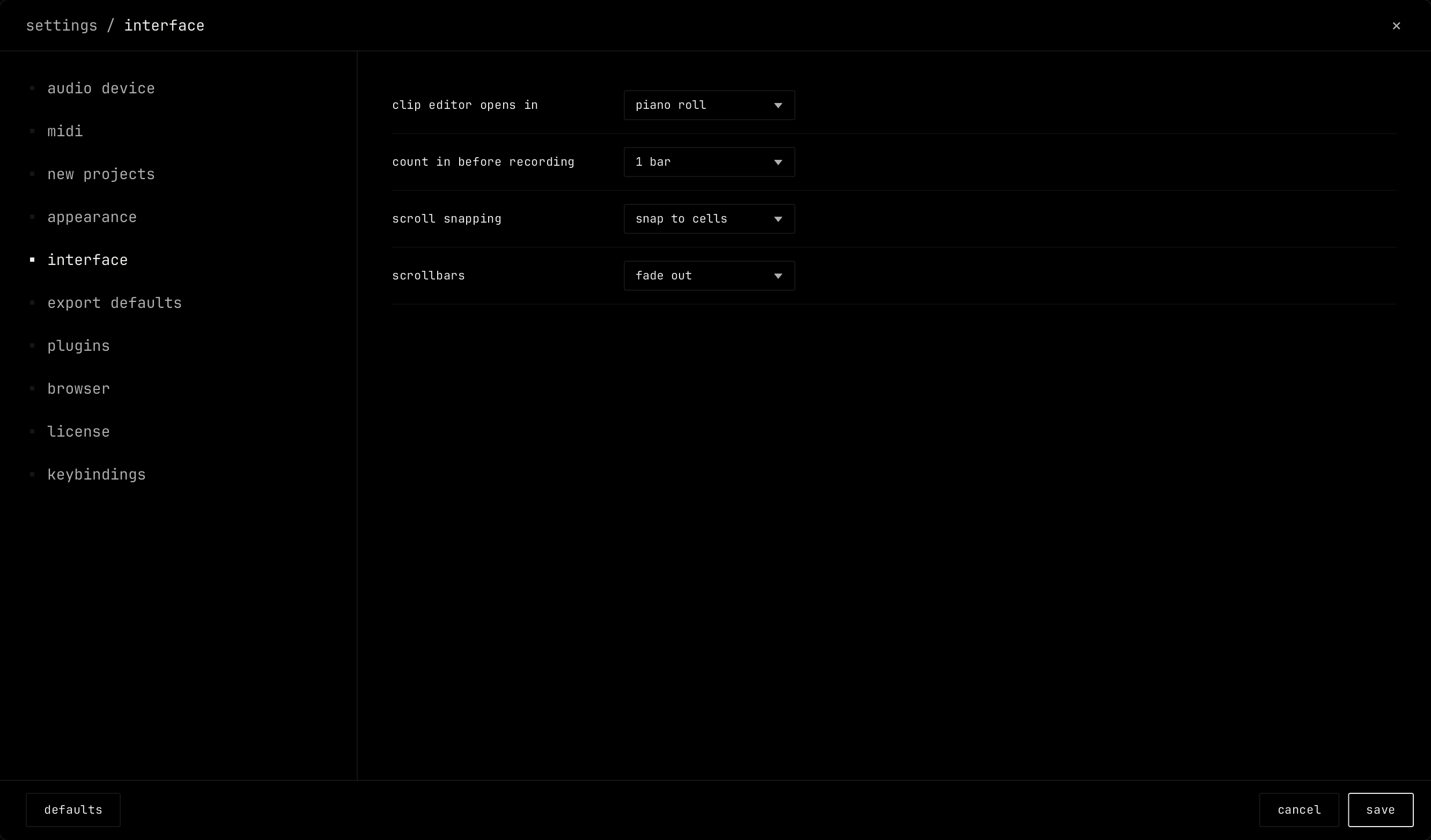
interface
interface.
Setting
What it does
clip editor opens in
piano roll, steps or tracker. Default: piano roll.
count in before recording
off, 1 bar or 2 bars. Default: 1 bar.
scroll snapping
snap to cells, or free. Default: snap to cells.
scrollbars
fade out, or always show. Default: fade out.
tutorial
start the tour starts the tour again.
export defaults
export defaults.
Setting
What it does
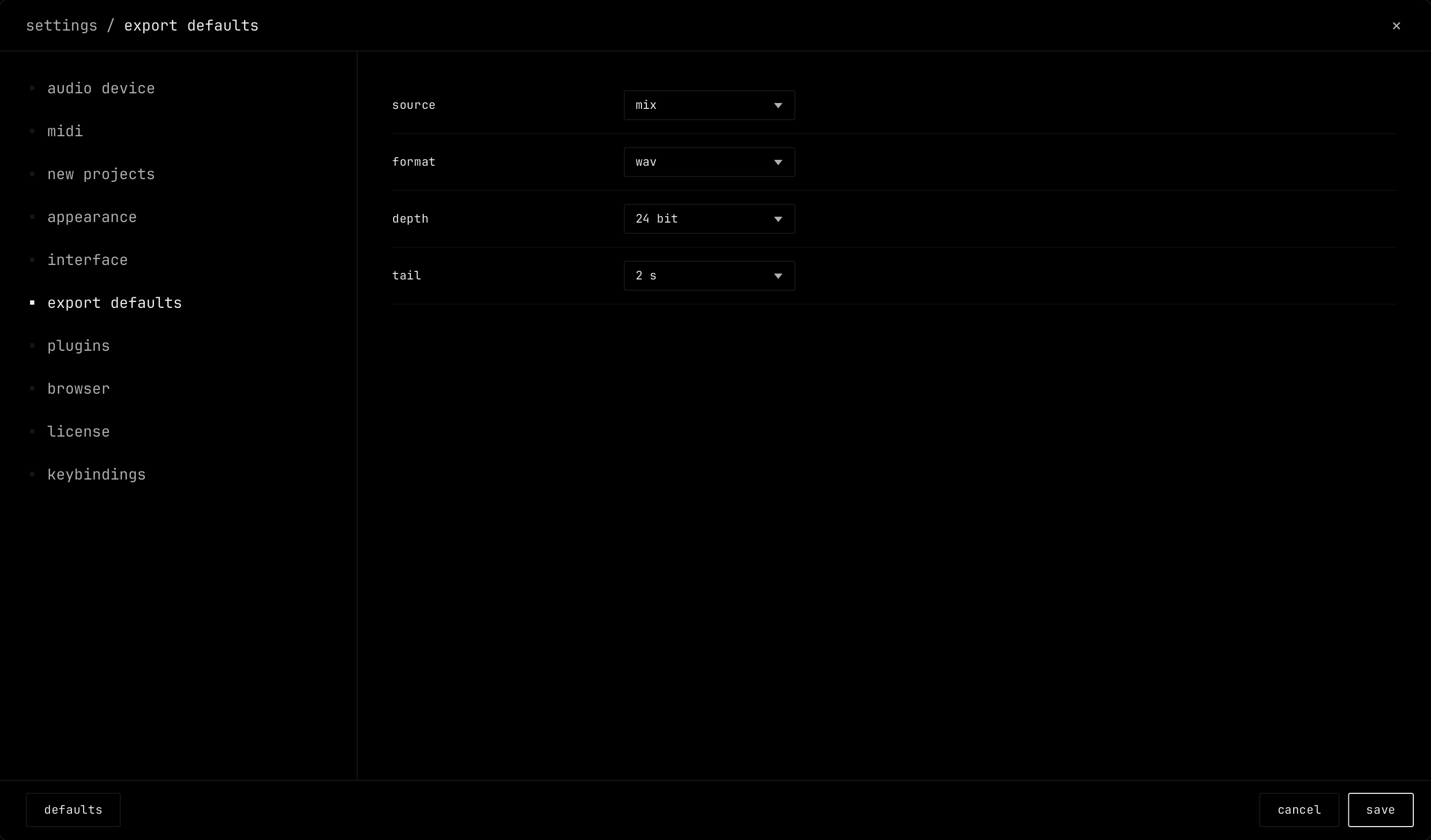
source
mix, stems (one file for each channel) or mix + stems. Default: mix.
format
wav, aiff, flac or ogg opus. Default: wav.
depth
16 bit or 24 bit. Ogg opus sets its own depth. Default: 24 bit.
tail
0 s, 2 s or 4 s of time after the end, so reverb and echo can ring out. Default: 2 s.
plugins
Setting
What it does
folders
The folders launcher scans for plugins. add folder adds one.
scan
scan now scans the folders again and shows how many plugins it found.
skipped
Plugins that failed to load, with the reason. retry scans one again.
browser
browser.
Setting
What it does
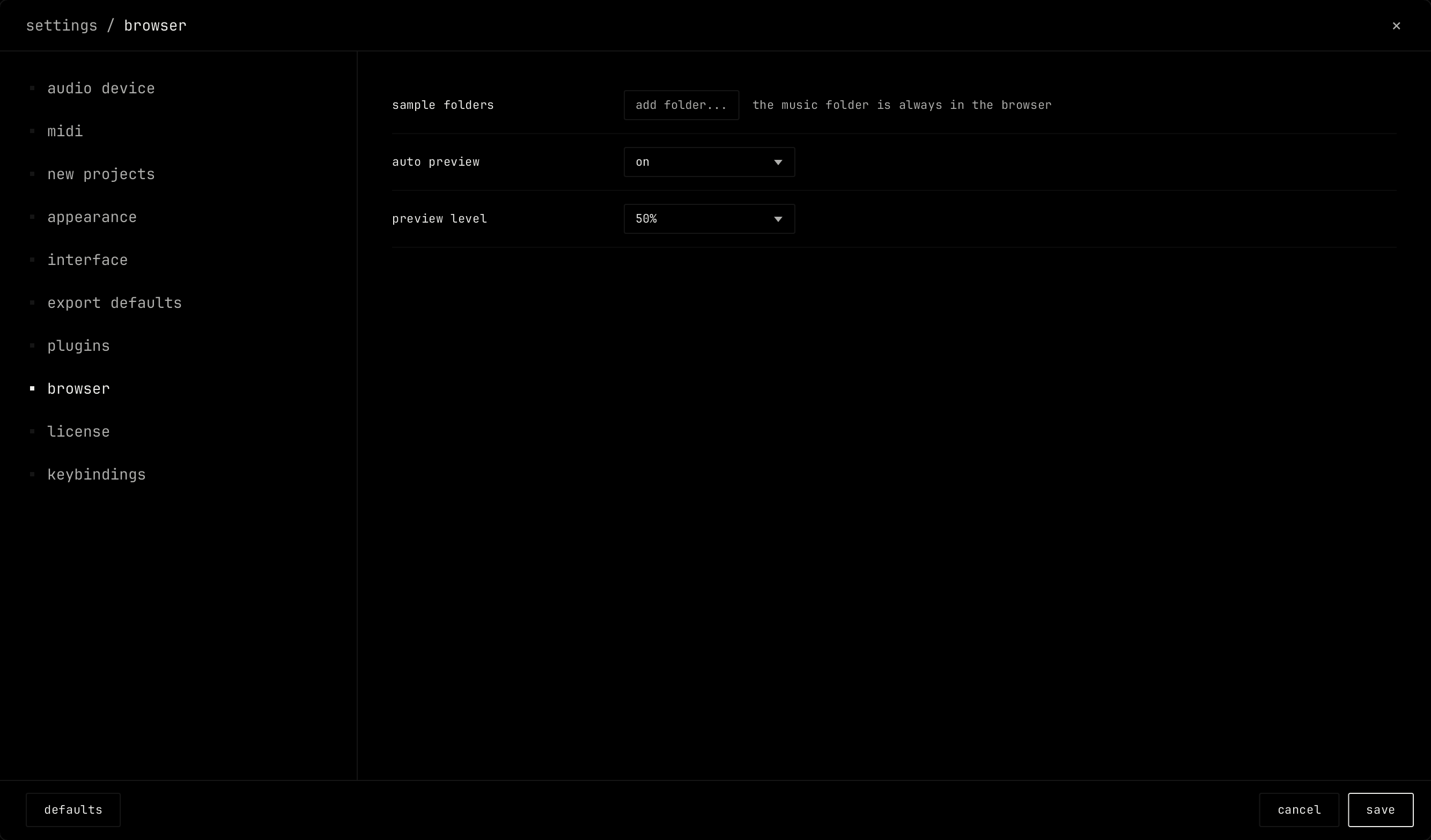
sample folders
add folder... adds a folder to the samples section. The music folder is always in the browser.
auto preview
on: a click on a sample plays it. Default: on.
preview level
The volume of the preview.
license
Shows the license status, the key, this computer and how many computers use the key. A key works on 3 computers. It is checked online once, then works offline. remove from this machine frees the key for another computer. Without a key, the section has a field to type it. See Getting started.
keybindings
keybindings.
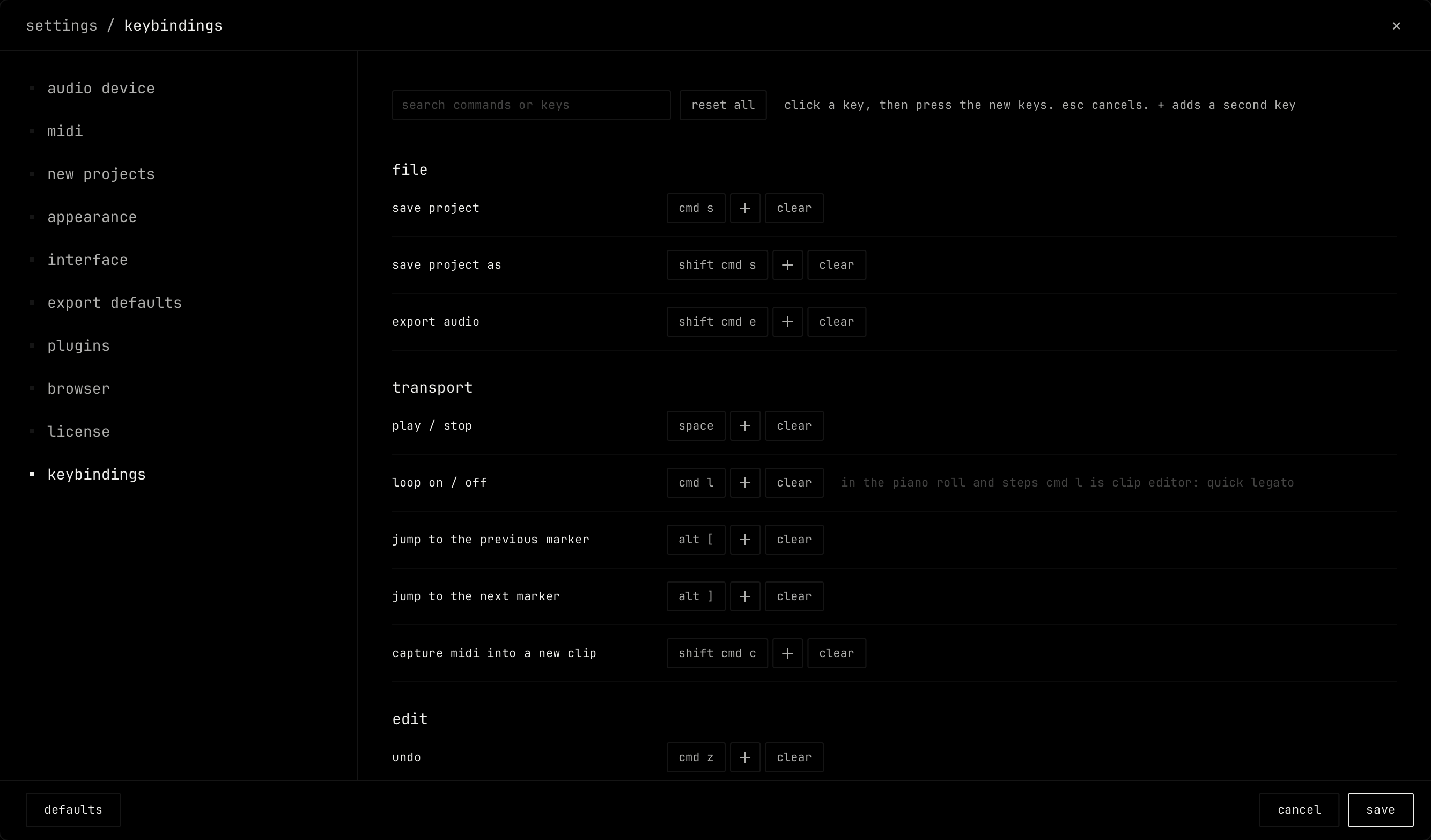
Every command with its keys, in groups. Search with the field at the top. Click a key, then press the new keys. esc cancels. + adds a second key. clear removes a key. reset all sets every key back to its default. A note shows where a key does something else in one part of the window. See Keyboard shortcuts.